How to make a custom Mac wallpaper with AI
To use a custom wallpaper, open System Settings › Wallpaper and add a photo or folder. To make one with AI that also matches your icons, folders and widgets, describe it in DesignMyMac — it paints an original wallpaper sized for your displays and designs the rest of your desktop around it.
The built-in way
- Create or download an image at least the resolution of your display (5K for Studio Display, ~3K for MacBook Air).
- Open System Settings › Wallpaper › Add Photo or Add Folder.
- Choose Fill Screen and, for multiple displays, set each one.
What it can't do
- Generic AI images rarely match the rest of your desktop.
- Low-resolution images look soft on Retina displays.
With DesignMyMac
- Describe a scene — “misty pine forest at dawn”, “Hokusai waves in indigo”.
- DesignMyMac researches the style and paints an original wallpaper with quiet space for your icons and widgets.
- It sets it on every connected display when you apply, and can add a phone wallpaper to match.
Describe the look you want — DesignMyMac designs every layer and applies it only when you approve.
Download for MacQuestions
Who owns the wallpapers DesignMyMac creates?
You do — use them however you like, within the law.
Can I add subtle motion?
Yes: drift, glow, particles, snow, rain or stars, optionally only when plugged in.
Can I base it on my own photo?
Yes. Attach a photo and DesignMyMac uses it as reference for palette, mood and composition.
Does it change my files?
No. DesignMyMac only changes how things look — wallpaper, icons, folders' appearance, the Dock, widgets and window styling.
Can I undo everything?
Yes. You approve every change, originals are backed up first, and ⇧⌘R restores your previous look.
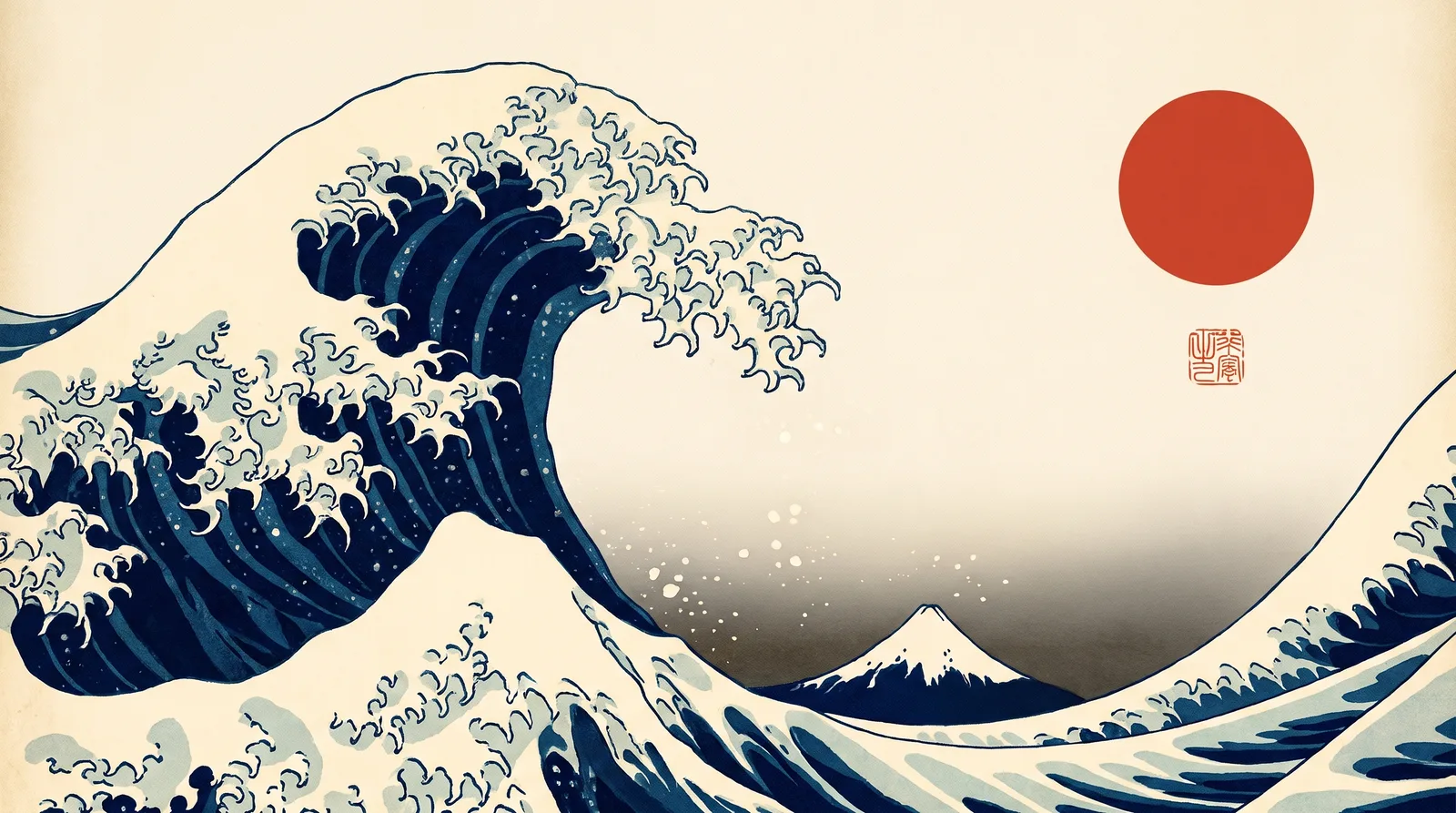 Japanese Ukiyo-eGreat Wave Indigo
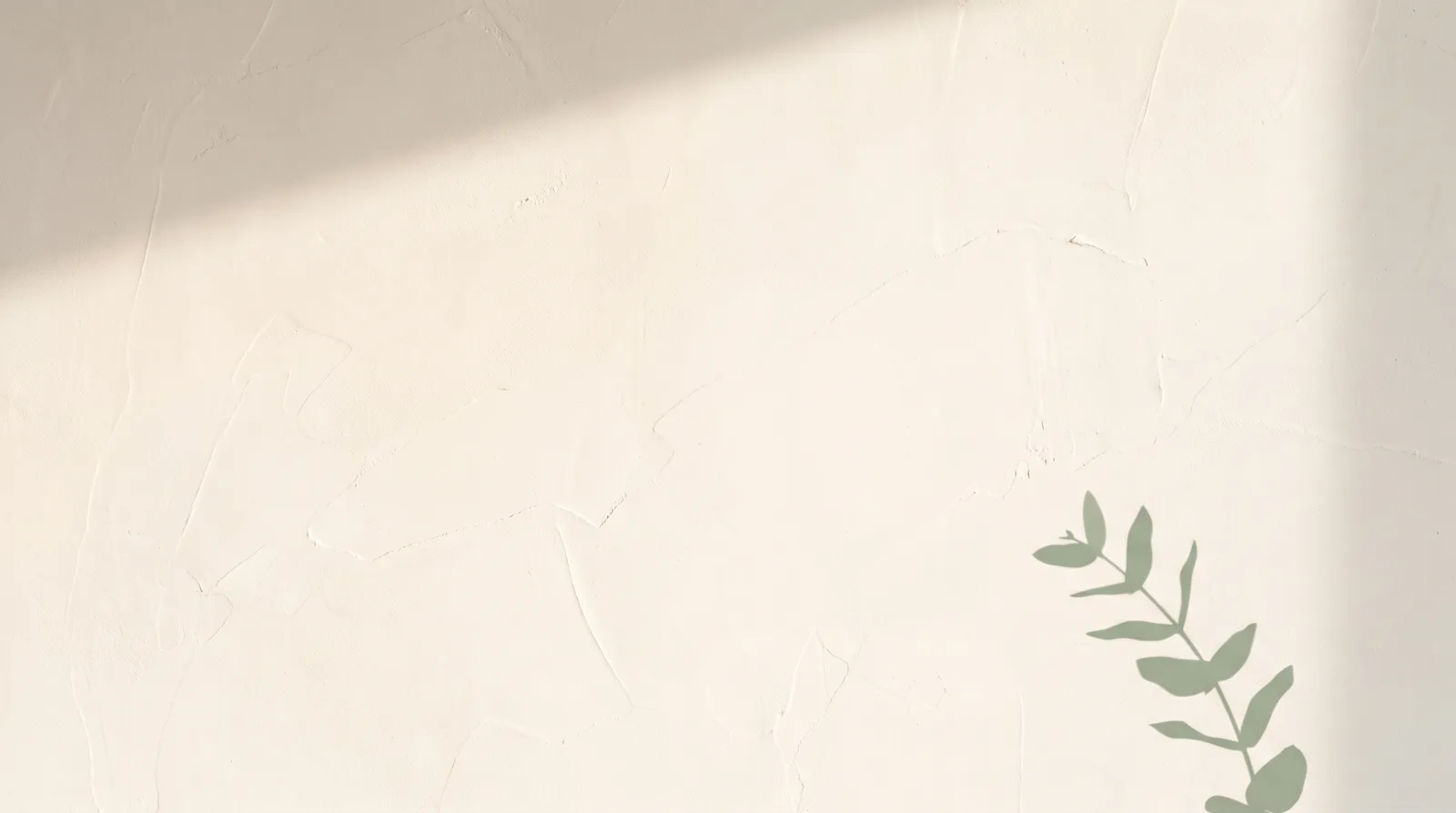 MinimalBare Plaster Wall
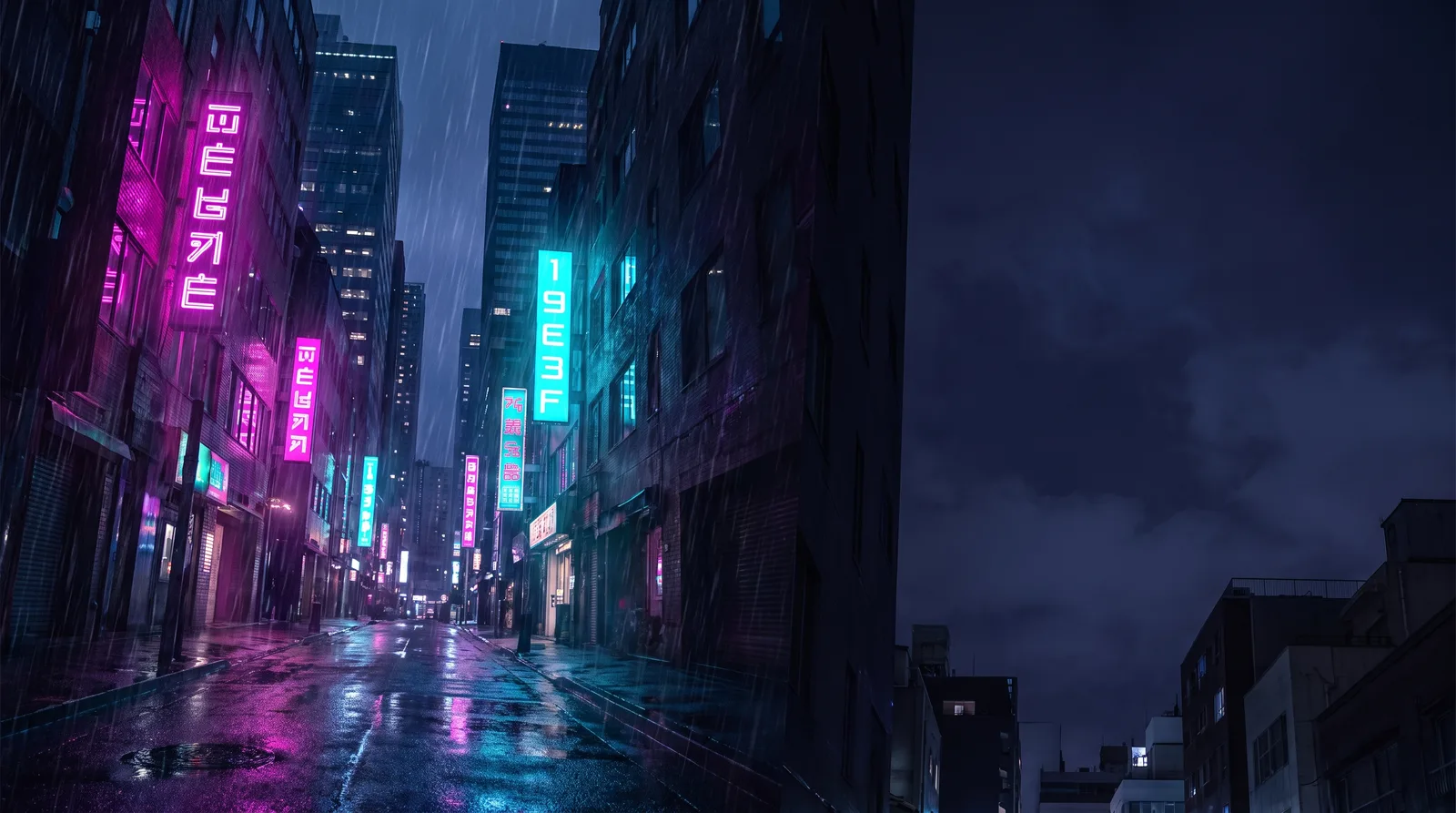 CyberpunkRain Alley 2049
 Retro 80s SynthwaveHorizon Run
 CottagecoreMeadow at Hay Time
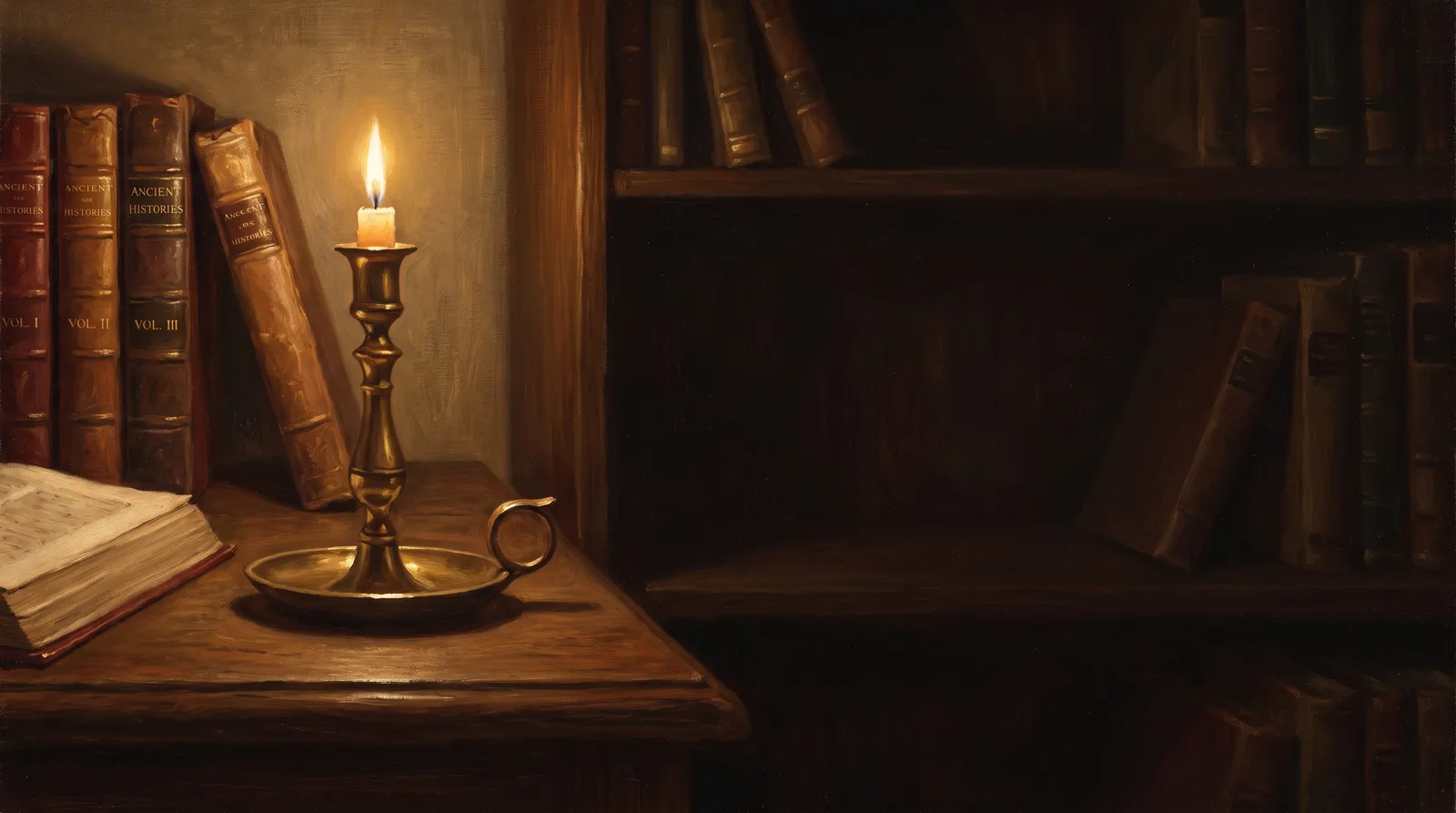 Dark AcademiaReading Room at Last Candle