How to get a moving wallpaper on a Mac
macOS includes dynamic and aerial wallpapers in System Settings › Wallpaper, but not custom animated ones. DesignMyMac adds gentle motion over your own wallpaper — drift, glow, particles, snow, rain or twinkling stars — and can pause it on battery.
The built-in way
- Open System Settings › Wallpaper.
- Choose a Dynamic Desktop or one of Apple's aerial landscapes.
- Aerials move slowly and pause when your Mac is busy.
What it can't do
- You can't animate your own image with built-in settings.
- Video wallpapers need third-party apps and can use battery.
With DesignMyMac
- Open Tune › Wallpaper and pick a Motion: drift, glow, particles, snow, rain or stars.
- Turn on “Only when plugged in” to save battery.
- Apply › Wallpaper sets the still image and the motion together.
Try it
Describe the look you want — DesignMyMac designs every layer and applies it only when you approve.
Download for MacQuestions
Does motion drain the battery?
It's lightweight, and “Only when plugged in” stops it on battery.
Can motion match the season?
Yes — snow for winter themes, rain for moody cities, stars for night skies.
Can I turn it off?
Choose Still in Tune › Wallpaper › Motion.
Does it change my files?
No. DesignMyMac only changes how things look — wallpaper, icons, folders' appearance, the Dock, widgets and window styling.
Can I undo everything?
Yes. You approve every change, originals are backed up first, and ⇧⌘R restores your previous look.
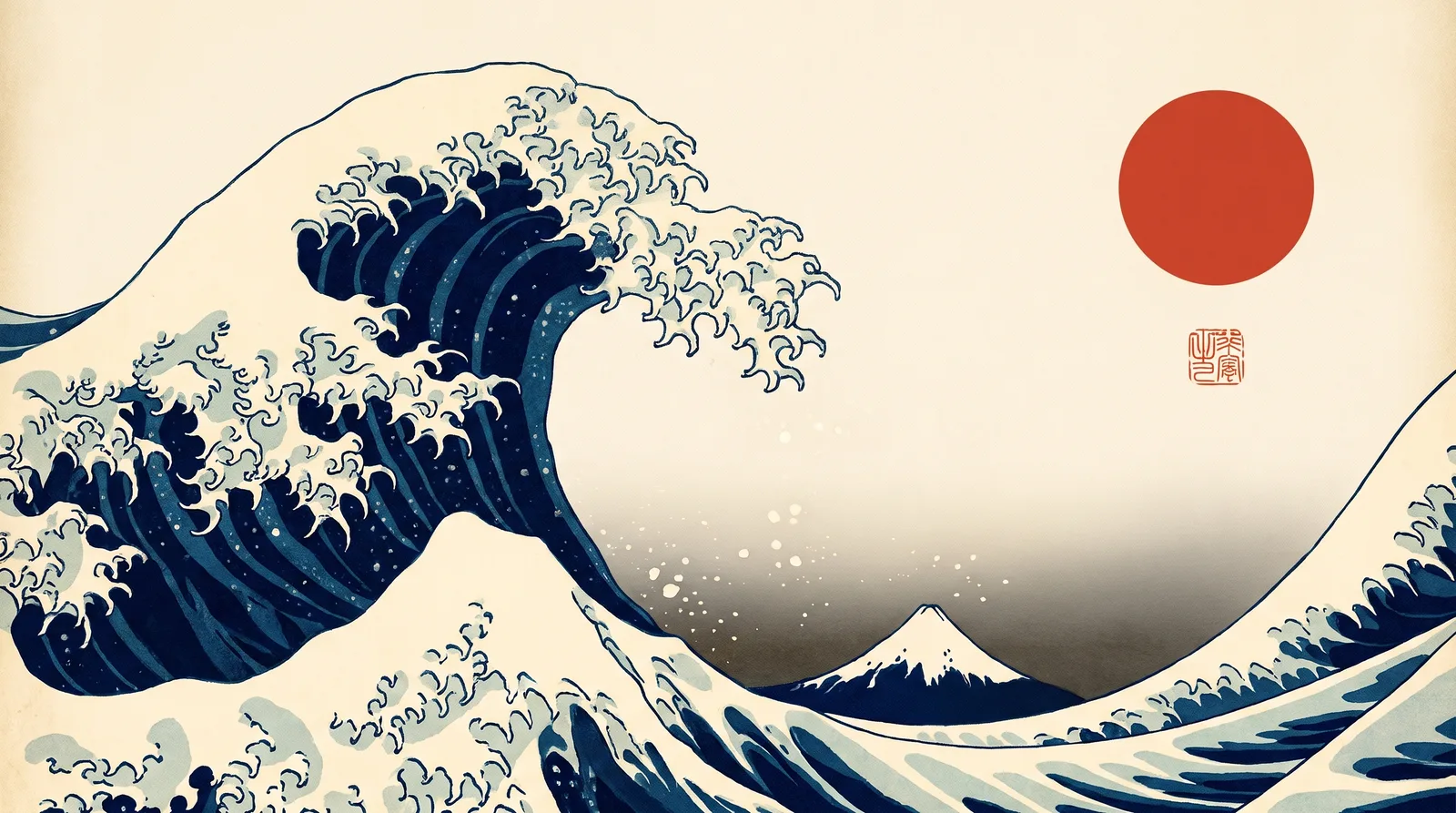 Japanese Ukiyo-eGreat Wave Indigo
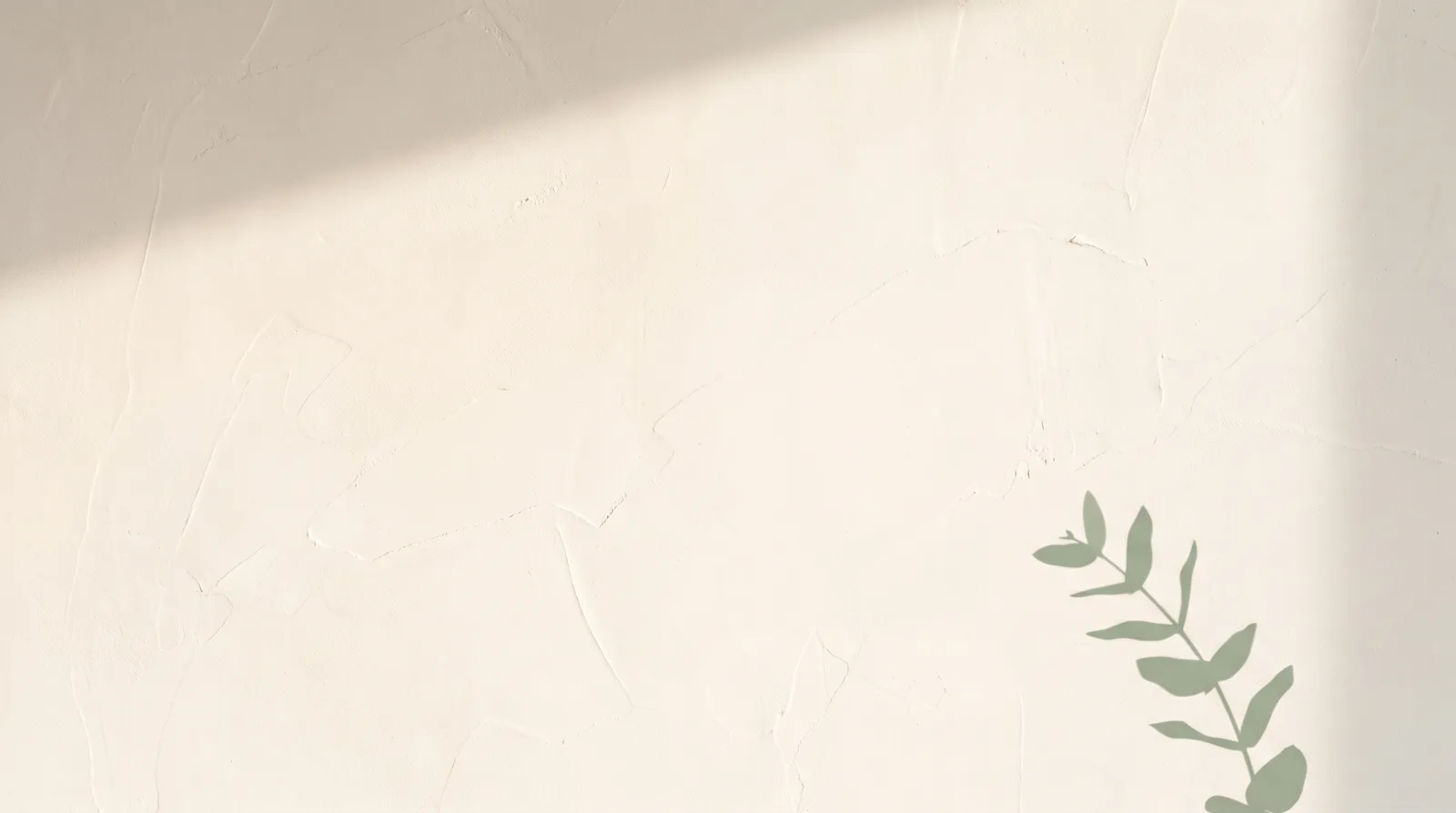 MinimalBare Plaster Wall
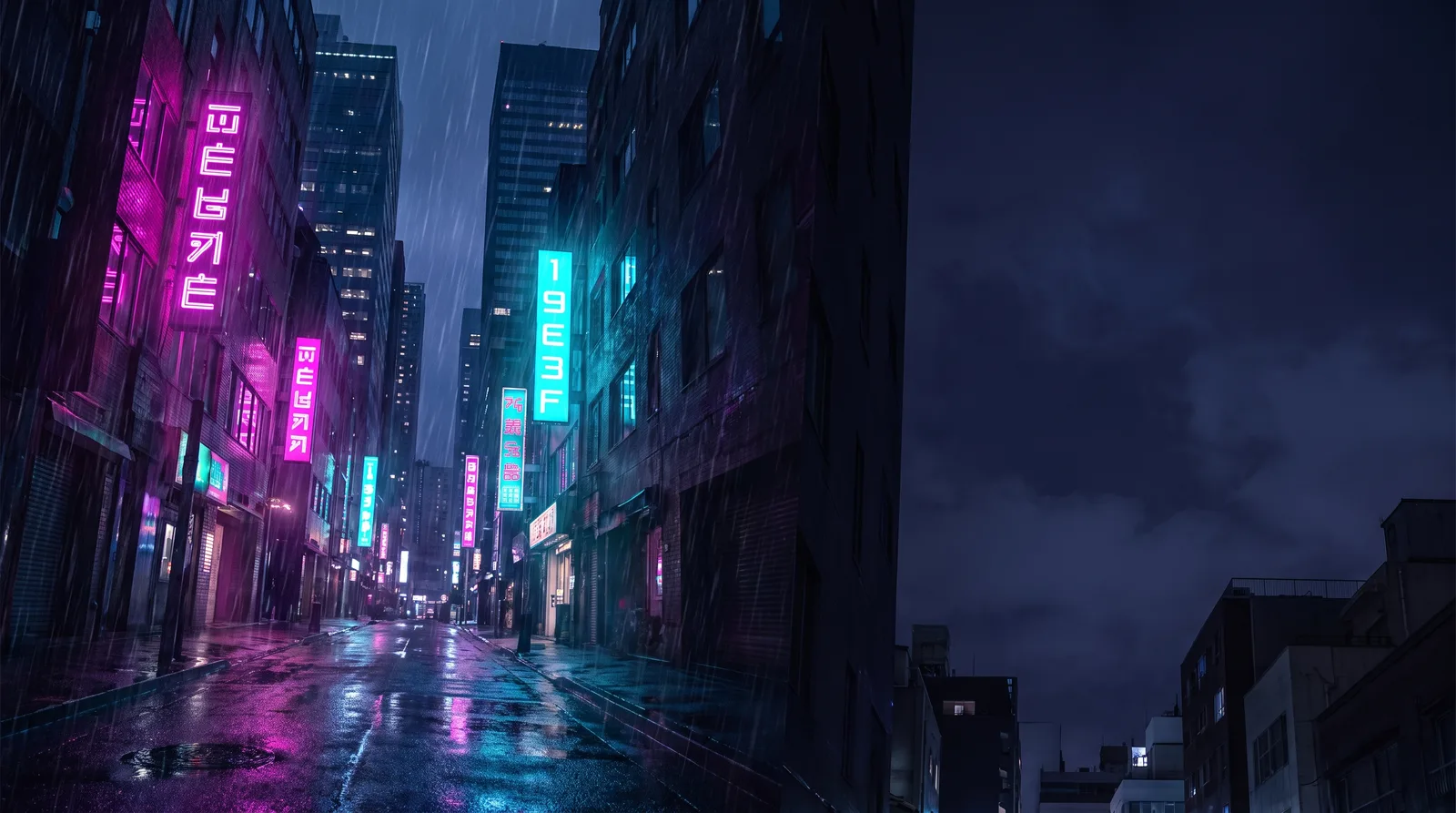 CyberpunkRain Alley 2049
 Retro 80s SynthwaveHorizon Run
 CottagecoreMeadow at Hay Time
 Dark AcademiaReading Room at Last Candle