How to match your Mac's accent colour and dark mode to a theme
Open System Settings › Appearance to switch Light, Dark or Auto and choose an accent and highlight colour. DesignMyMac can match these to your theme when you apply — and leaves Auto alone if your Mac switches by time of day.
The built-in way
- Open System Settings › Appearance.
- Choose Light, Dark or Auto.
- Pick an Accent colour and Highlight colour.
- On macOS Tahoe, choose an Icon & widget style.
What it can't do
- Accent colours are limited to Apple's preset swatches.
- Matching them to a custom theme is guesswork.
With DesignMyMac
- Apply a look and turn on “Match macOS appearance”.
- DesignMyMac picks Light or Dark from your theme and the nearest accent colour.
- Restore returns your previous appearance.
Try it
Describe the look you want — DesignMyMac designs every layer and applies it only when you approve.
Download for MacQuestions
Why does DesignMyMac ask to control System Events?
That's how macOS lets apps switch Light and Dark mode; you can allow or deny it.
Will it override Auto?
No — if you use Auto, it keeps it.
Can I tint all icons to my theme?
On macOS Tahoe, yes: “Tint Apple's icons” sets the icon style to your theme's colour.
Does it change my files?
No. DesignMyMac only changes how things look — wallpaper, icons, folders' appearance, the Dock, widgets and window styling.
Can I undo everything?
Yes. You approve every change, originals are backed up first, and ⇧⌘R restores your previous look.
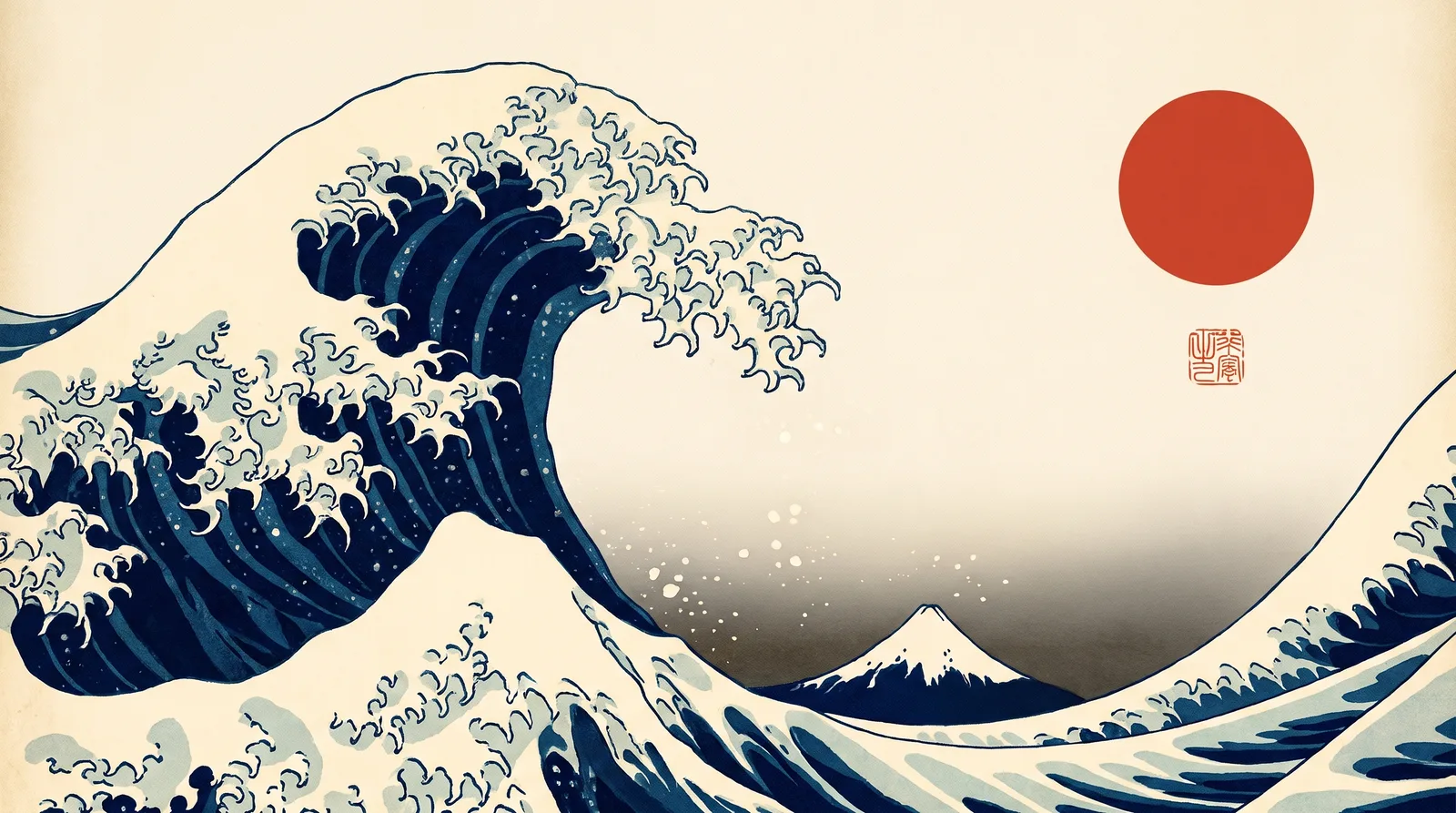 Japanese Ukiyo-eGreat Wave Indigo
 MinimalBare Plaster Wall
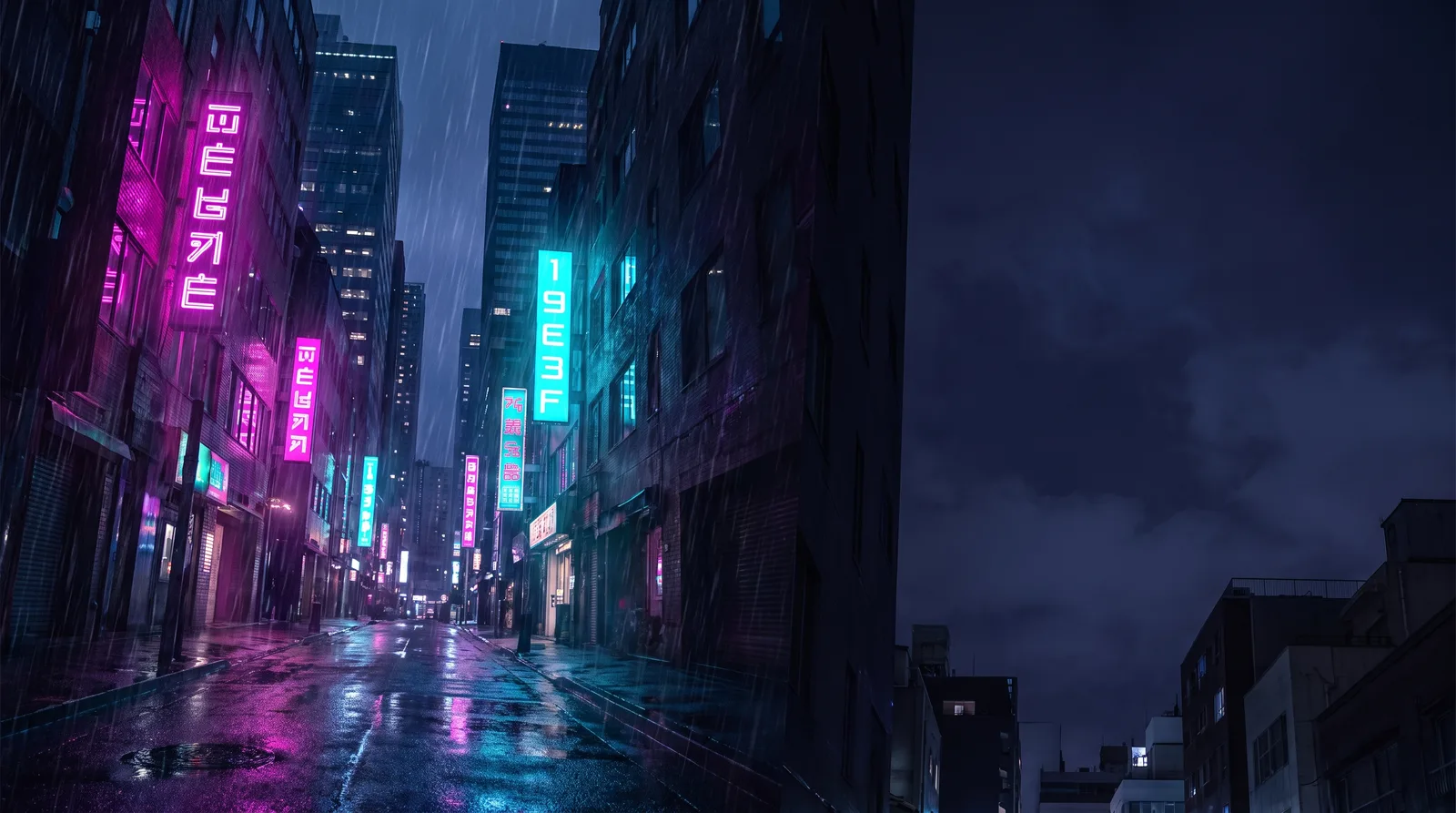 CyberpunkRain Alley 2049
 Retro 80s SynthwaveHorizon Run
 CottagecoreMeadow at Hay Time
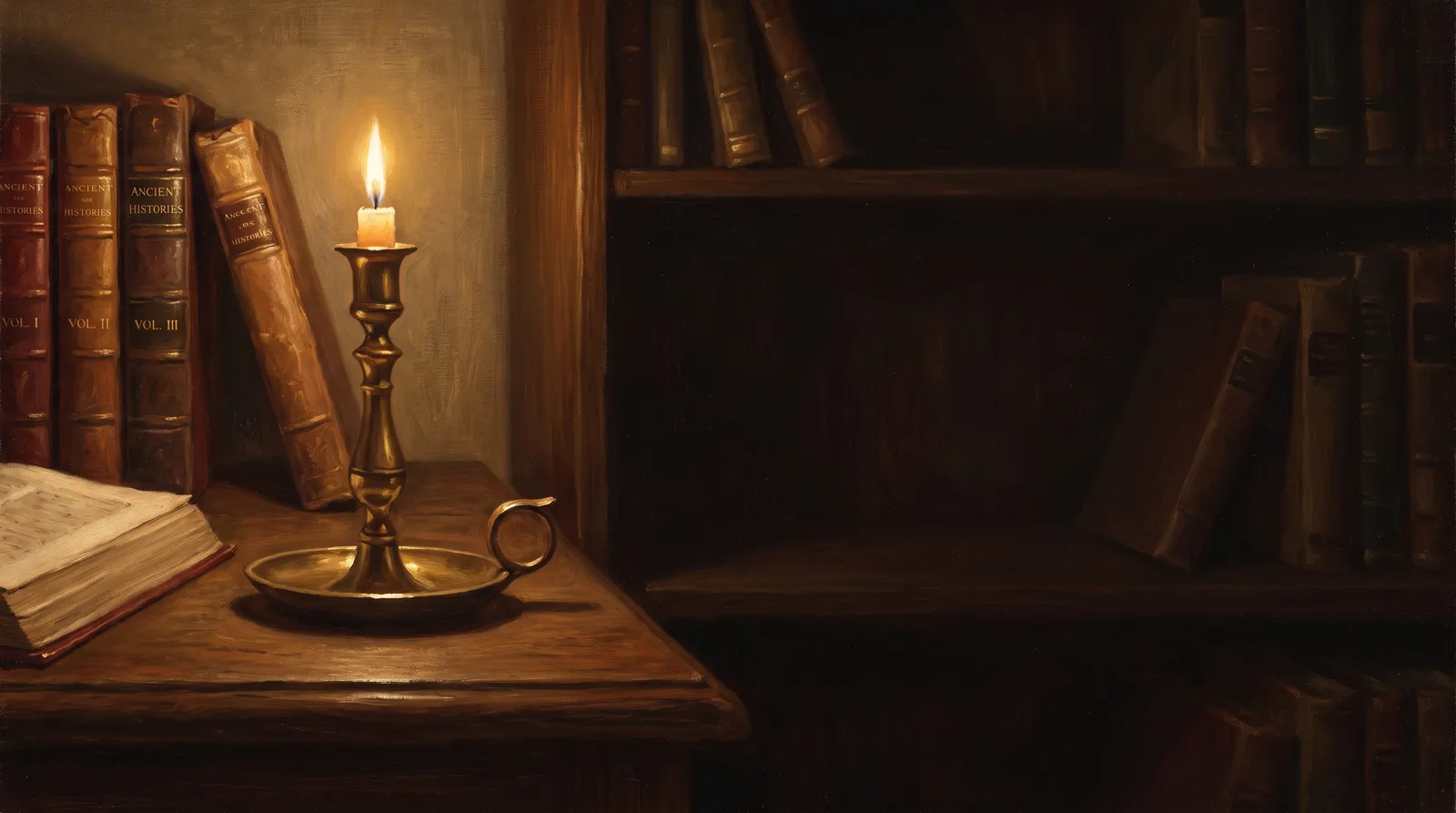 Dark AcademiaReading Room at Last Candle