How to restore your Mac's original icons and wallpaper
To undo a custom folder or app icon by hand, select it, press ⌘I, click the small icon and press Delete. If you used DesignMyMac, press ⇧⌘R (or Settings › Restore) to put back your previous wallpaper, icons, folders, Dock and widgets in one step.
The built-in way
- For each customised folder or app: select it, press ⌘I.
- Click the small icon at the top left of the Info window and press Delete.
- Reset your wallpaper in System Settings › Wallpaper.
What it can't do
- You have to find every item you changed.
- There's no record of what the original looked like.
With DesignMyMac
- Press ⇧⌘R or choose Settings › Restore your Mac.
- DesignMyMac reverses the last look from its saved snapshot.
- Anything you changed yourself since is left as you made it; anything macOS won't let it change back is reported, with its backup kept.
Try it
Describe the look you want — DesignMyMac designs every layer and applies it only when you approve.
Download for MacQuestions
Does Restore delete my files?
No. It only changes how things look.
Can I restore an older look?
Each apply saves a snapshot, so you can restore step by step.
What if I uninstall DesignMyMac?
Restore first if you want your original look back.
Does it change my files?
No. DesignMyMac only changes how things look — wallpaper, icons, folders' appearance, the Dock, widgets and window styling.
Can I undo everything?
Yes. You approve every change, originals are backed up first, and ⇧⌘R restores your previous look.
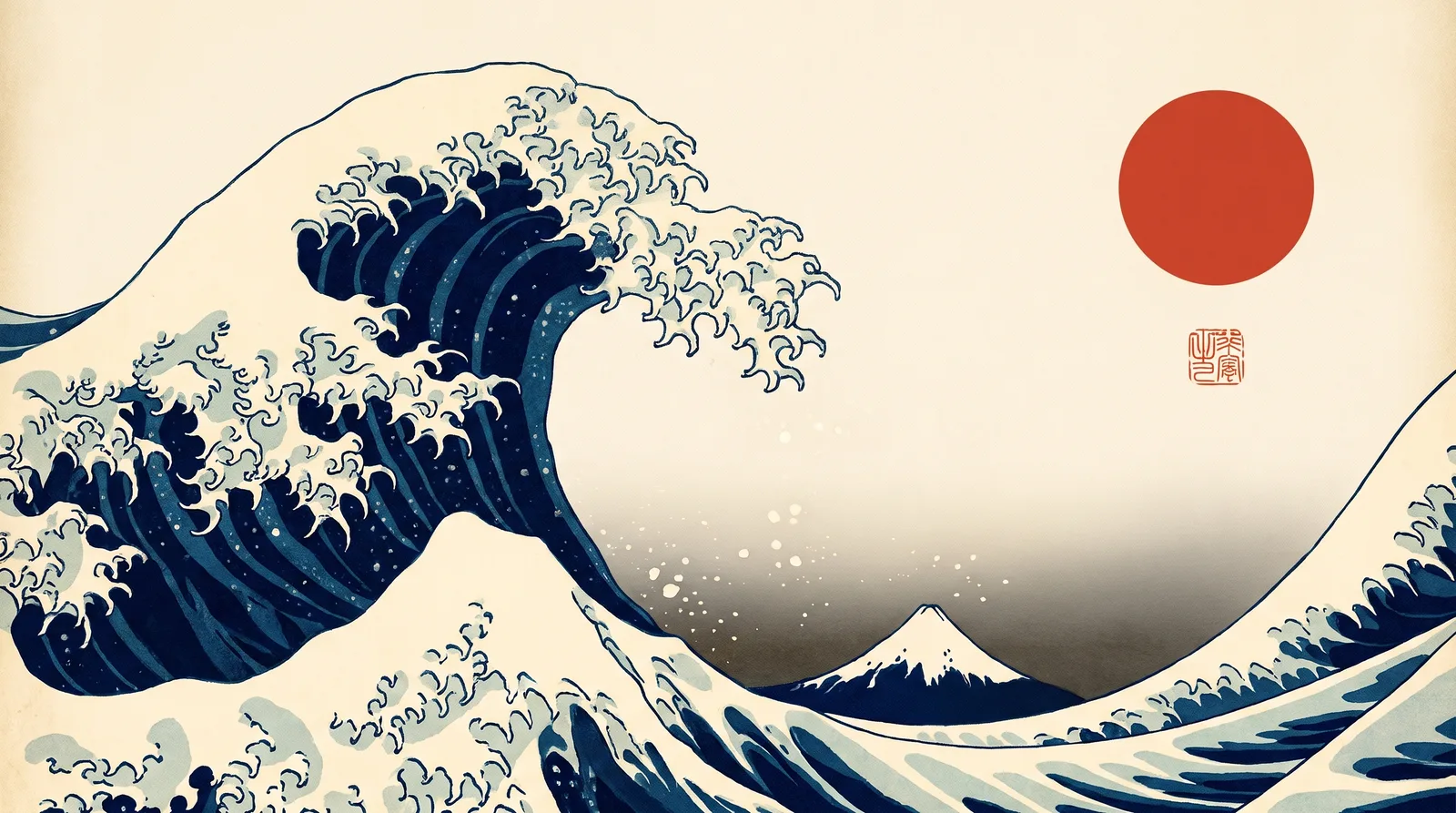 Japanese Ukiyo-eGreat Wave Indigo
 MinimalBare Plaster Wall
 CyberpunkRain Alley 2049
 Retro 80s SynthwaveHorizon Run
 CottagecoreMeadow at Hay Time
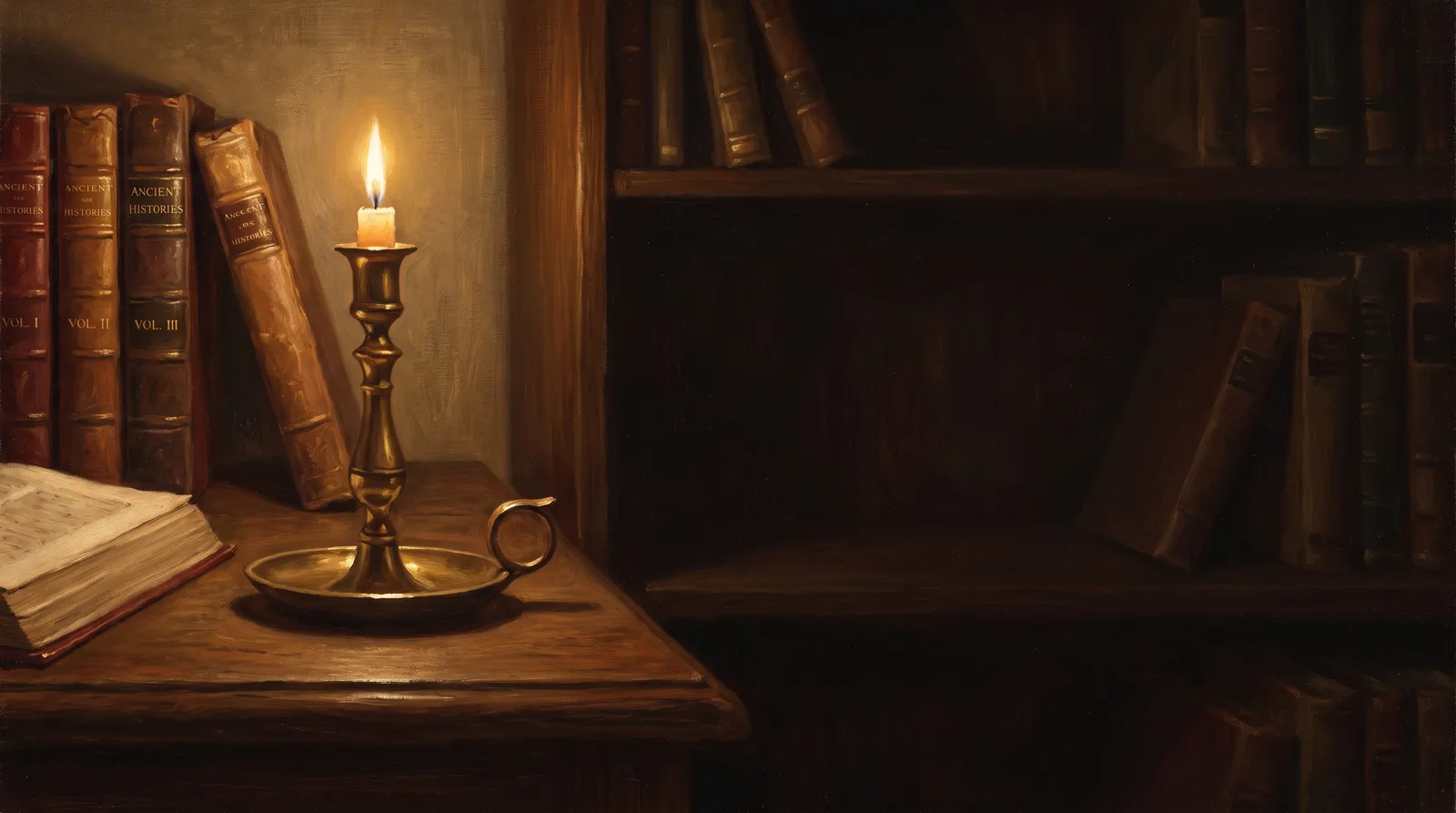 Dark AcademiaReading Room at Last Candle