How to theme Terminal, Ghostty, Warp and VS Code to match your Mac
Terminal apps and code editors use their own colour schemes. DesignMyMac turns your desktop's palette into matching themes for Ghostty, iTerm2, Warp and VS Code, and can install them into each app's themes folder — without changing any app settings.
The built-in way
- Find or write a colour scheme for each app (Ghostty config, iTerm2 profile, Warp theme YAML, VS Code colour customizations).
- Copy each into the app's themes folder and select it in that app's settings.
What it can't do
- Every app uses a different format.
- Keeping them in sync with your wallpaper is manual.
With DesignMyMac
- Apply a look, then open Apply › Matching app themes.
- Save the files or install them into Ghostty, iTerm2 and Warp; VS Code gets a colours file to merge.
- Select the new theme in each app.
Try it
Describe the look you want — DesignMyMac designs every layer and applies it only when you approve.
Download for MacQuestions
Does DesignMyMac change my app settings?
No. It only adds theme files; you choose them in each app.
Which apps are supported?
Ghostty, iTerm2, Warp and VS Code.
Will the colours be readable?
Yes — themes keep contrast for text and ANSI colours.
Does it change my files?
No. DesignMyMac only changes how things look — wallpaper, icons, folders' appearance, the Dock, widgets and window styling.
Can I undo everything?
Yes. You approve every change, originals are backed up first, and ⇧⌘R restores your previous look.
 Japanese Ukiyo-eGreat Wave Indigo
 MinimalBare Plaster Wall
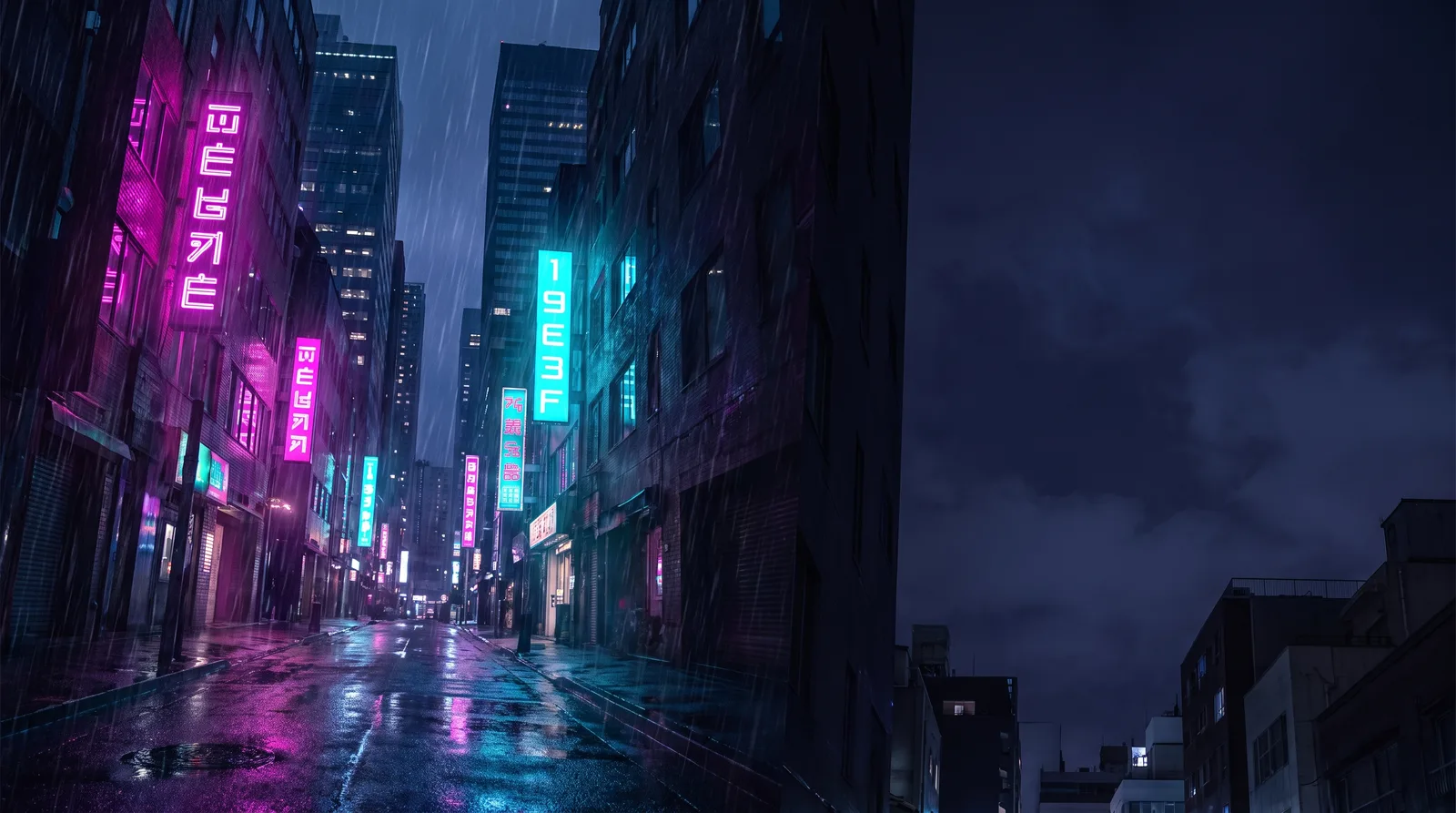 CyberpunkRain Alley 2049
 Retro 80s SynthwaveHorizon Run
 CottagecoreMeadow at Hay Time
 Dark AcademiaReading Room at Last Candle