To give your Mac a Gaming Setup look, describe it in DesignMyMac — for example “A gaming setup desktop: RGB glow on dark glass, controller-inspired icons, a system monitor and countdown”. It researches the style, proposes three directions with a painted wallpaper and icon sample, and applies your choice to the wallpaper, app icons, folders, Dock, widgets and windows together. Every original is backed up and one click restores it.
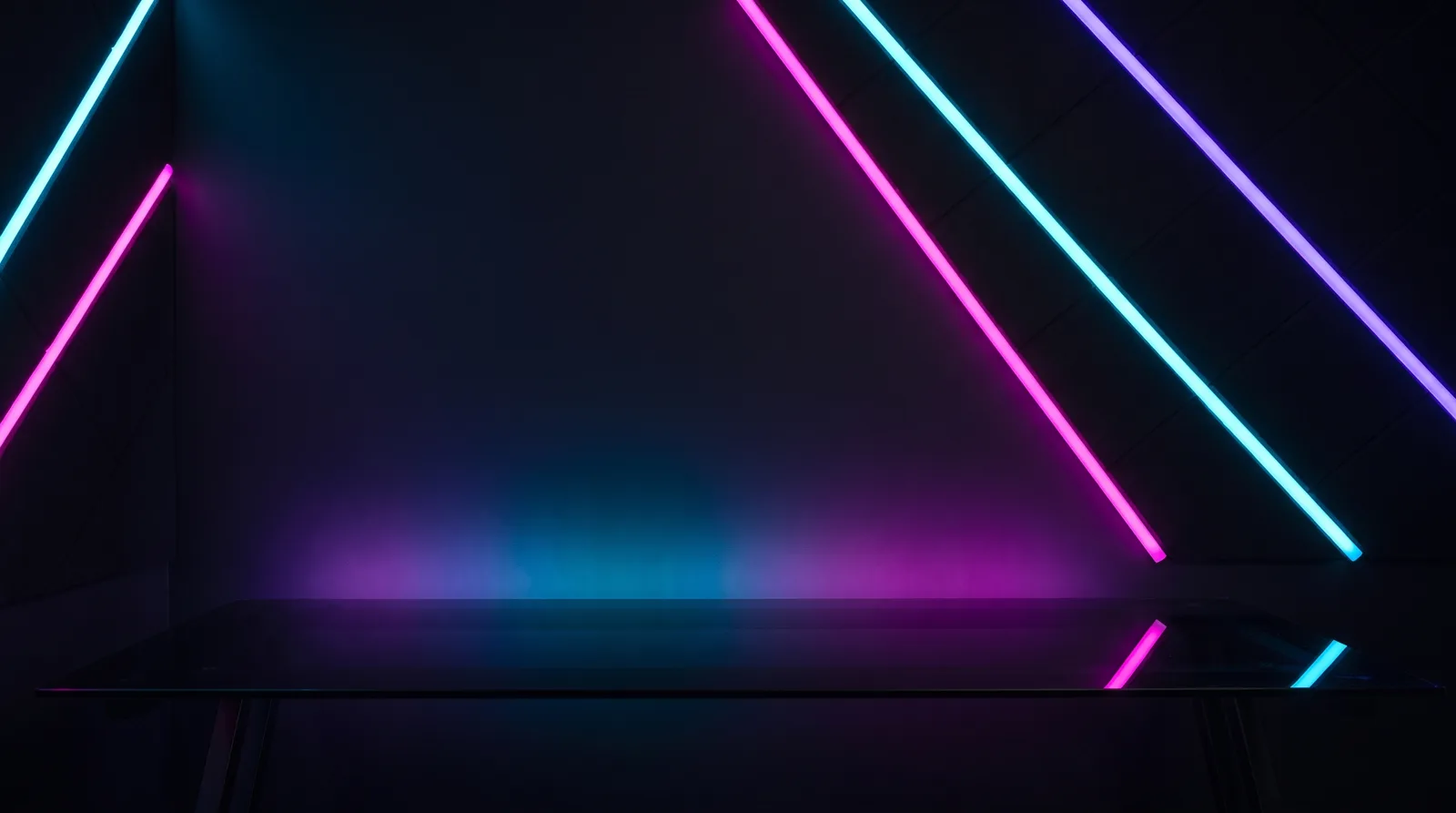
Rig Light Spectrum — painted by DesignMyMac from the prompt below.
Prompt
“A gaming setup desktop: RGB glow on dark glass, controller-inspired icons, a system monitor and countdown”
You want a gaming desk feel: RGB glow on dark glass, controller-inspired icons, with a live system monitor and a countdown. Three directions: a neon rig at night, an arcade cabinet, and a retro console shelf.
Three directions DesignMyMac proposed
Direction A
Rig Light Spectrum
Dark glass desk at 2am, RGB strips bleeding magenta, cyan and violet across the wall.
Grounded in: RGB desk-setup photography
Wallpaper
Dark desk wall lit by diagonal RGB LED strips in magenta, cyan and violet, soft bloom on matte black panels, empty centre-left for icons.
App icons & Dock
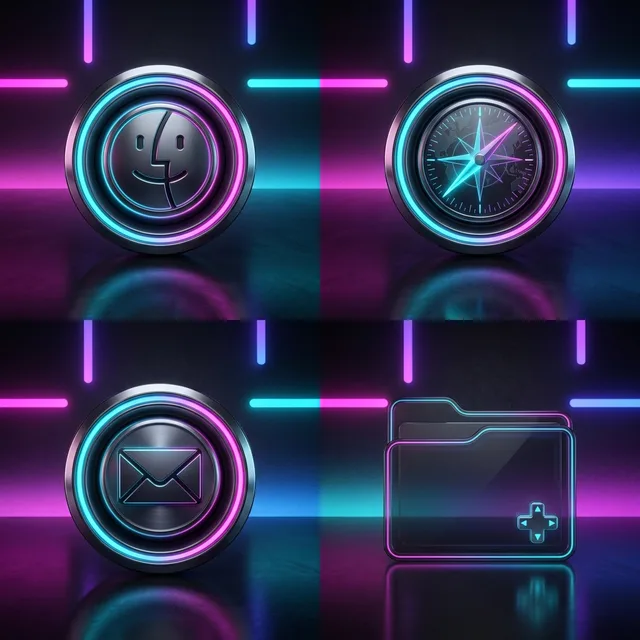
Chrome-bevel icons shaped like controller buttons: circular face-button badges with thumbstick-dimple centres, cyan and magenta rim glow.
Folders
Smoked glass folders with a thin RGB gradient edge and a small D-pad cross emblem in cyan.
Widgets
One glass card on the right: system block (CPU, memory, network), a countdown to a release date, and a battery block, in mono type with magenta ring accents.
Windows
Floating dark glass windows with thin neon edge light and compact headers.
Direction B
Cabinet Glow Arcade
A dim arcade aisle: lacquered cabinets, CRT haze, and joystick-red buttons in bright primaries.
Grounded in: 1980s arcade cabinet and CRT marquee design
Wallpaper
Row of arcade cabinets in a dark hall, purple carpet with starry pattern, marquee lights in yellow and red, CRT scanline haze, calm lower-right area.
App icons & Dock
Pixel-art icons on round enamel arcade-button bases in red, yellow and green, each with a chunky joystick-ball highlight.
Folders
Purple enamel folders with a yellow coin-slot label and a pixel joystick emblem.
Widgets
Pixel-framed card with a high-score style countdown in pixel font, a system monitor with bar meters, and a nowPlaying block with bars.
Windows
Solid dark violet windows with editorial headers and yellow outline selection.
Direction C
Console Shelf Matte
Quiet, tidy, grown-up setup: matte grey hardware, one status LED, soft white and ice-blue light.
Close-up of matte grey console casing with a single ice-blue LED line and fine vent grille texture, soft side light, wide dark negative space.
App icons & Dock
Stencil icons cut as controller silhouettes and button glyphs, off-white on matte grey tiles with a tiny blue status dot.
Folders
Flat matte grey folders with a debossed controller outline and a blue LED dot.
Widgets
Solid grey grid card with ring meters for CPU and disk via system block, a countdown, and a small checklist for game backlog, in condensed type.
Windows
Native solid dark grey windows, compact headers, filled ice-blue selection.
What changes on your Mac
Wallpaper — an original painting for every display, with optional motion.
App icons & Dock — matching icons for your apps in the DesignMyMac Dock, in its own colour.
Folders — every folder in your home in the same style, and new ones as you make them.
Widgets — clocks, calendars, weather and more, designed to match.
Windows — the DesignMyMac Files and Apps windows in your palette.
Questions
How do I make my Mac look Gaming Setup?
To give your Mac a Gaming Setup look, describe it in DesignMyMac — for example “A gaming setup desktop: RGB glow on dark glass, controller-inspired icons, a system monitor and countdown”. It researches the style, proposes three directions with a painted wallpaper and icon sample, and applies your choice to the wallpaper, app icons, folders, Dock, widgets and windows together. Every original is backed up and one click restores it.
What colours suit a Gaming Setup Mac desktop?
A strong starting palette is #0b0d14, #161a2b, #ff2bd6, #19e3ff, #7a3cff, led by the accent #ff2bd6. DesignMyMac uses it across your wallpaper, icons, folders, widgets and windows.
What widgets fit a Gaming Setup setup?
One glass card on the right: system block (CPU, memory, network), a countdown to a release date, and a battery block, in mono type with magenta ring accents.
Is DesignMyMac free?
You can start for free. Designing with AI has a daily limit per account.
Which Macs does it work on?
Apple silicon and Intel Macs running macOS 14 Sonoma or later. Download it free at designmymac.com/download.
Does it change my files?
No. DesignMyMac only changes how things look — wallpaper, icons, folders' appearance, the Dock, widgets and window styling.
 ForestFog Between Pines
 OceanShallows From Above
 Deep SpaceCarina Pillars
 Coffee ShopLatte Pour Overhead
 Rainy DayNight Bus Window
 AutumnCable-Knit Hearth